> ## Documentation Index
> Fetch the complete documentation index at: https://docs.masivo.ai/llms.txt
> Use this file to discover all available pages before exploring further.
# Overview
> Connect third-party tools to sync data from Masivo's Customer Data Platform
# Integrations
Integrations allow you to connect Masivo's Customer Data Platform with your favorite third-party tools, creating a seamless flow of customer data across your entire marketing and analytics stack.
 ## What are Integrations?
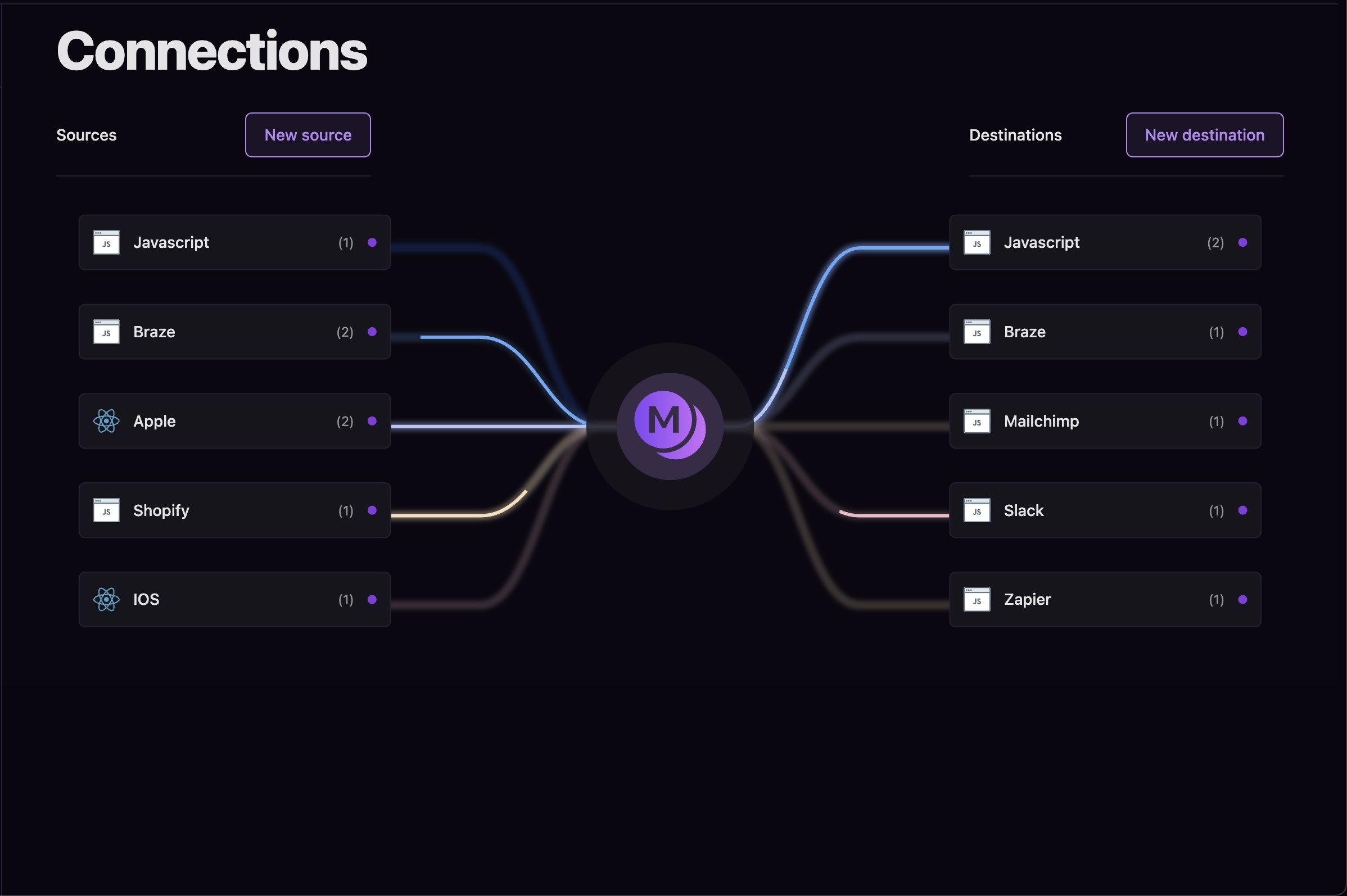
**Integrations** in Masivo are connections that automatically sync your customer data, events, and campaigns with external platforms. Think of them as bridges that keep all your tools updated with the latest customer information.
### What Gets Synced:
* **Customers**: Creation, updates, deletions, and customer tags
* **Events**: Behavioral events generated by your applications
* **Purchases**: Order and product information
* **Audiences**: Customer membership reflected as custom attributes
## How Integrations Work
### Automatic Data Flow
Once configured, integrations work automatically:
1. **Enable Integration**: Set up the connection in Settings → Integrations
2. **Automatic Sync**: Masivo automatically syncs data when:
* Customers are created, updated, or deleted
* Events occur in your applications
* Purchases are fulfilled
* Audiences are recalculated
3. **Efficient Processing**: Data is batched and sent to your chosen platform optimally
### Smart Validation
Before sending data, Masivo validates:
* Your configuration is correct
* Required features are enabled
* Data meets your business rules
* Events are appropriate for the target platform
### Efficient Processing
* Data is batched automatically to respect platform limits
* Failed syncs don't affect other integrations
* Real-time processing ensures timely data delivery
## What are Integrations?
**Integrations** in Masivo are connections that automatically sync your customer data, events, and campaigns with external platforms. Think of them as bridges that keep all your tools updated with the latest customer information.
### What Gets Synced:
* **Customers**: Creation, updates, deletions, and customer tags
* **Events**: Behavioral events generated by your applications
* **Purchases**: Order and product information
* **Audiences**: Customer membership reflected as custom attributes
## How Integrations Work
### Automatic Data Flow
Once configured, integrations work automatically:
1. **Enable Integration**: Set up the connection in Settings → Integrations
2. **Automatic Sync**: Masivo automatically syncs data when:
* Customers are created, updated, or deleted
* Events occur in your applications
* Purchases are fulfilled
* Audiences are recalculated
3. **Efficient Processing**: Data is batched and sent to your chosen platform optimally
### Smart Validation
Before sending data, Masivo validates:
* Your configuration is correct
* Required features are enabled
* Data meets your business rules
* Events are appropriate for the target platform
### Efficient Processing
* Data is batched automatically to respect platform limits
* Failed syncs don't affect other integrations
* Real-time processing ensures timely data delivery
 ### Integration Categories
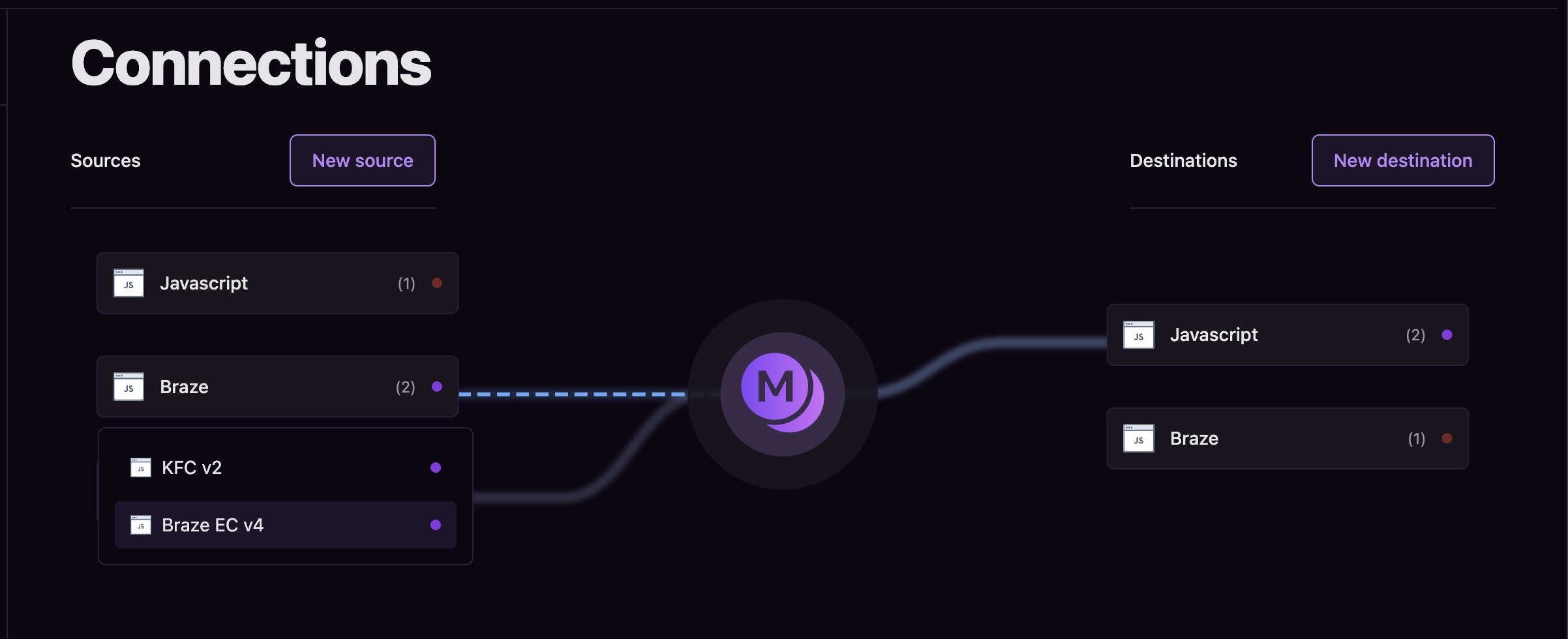
Masivo supports various types of integrations:
**Email Marketing**
* Customer engagement platforms
* Newsletter and campaign tools
* Marketing automation systems
**Website & Mobile**
* Analytics platforms
* User behavior tracking
* App performance monitoring
**Server & Cloud Sources**
* Data warehouses
* Cloud storage systems
* ETL platforms
**Event Streams**
* Real-time data processing
* Event-driven architectures
* Stream analytics
## Setting Up Integrations
### Step 1: Choose Your Integration
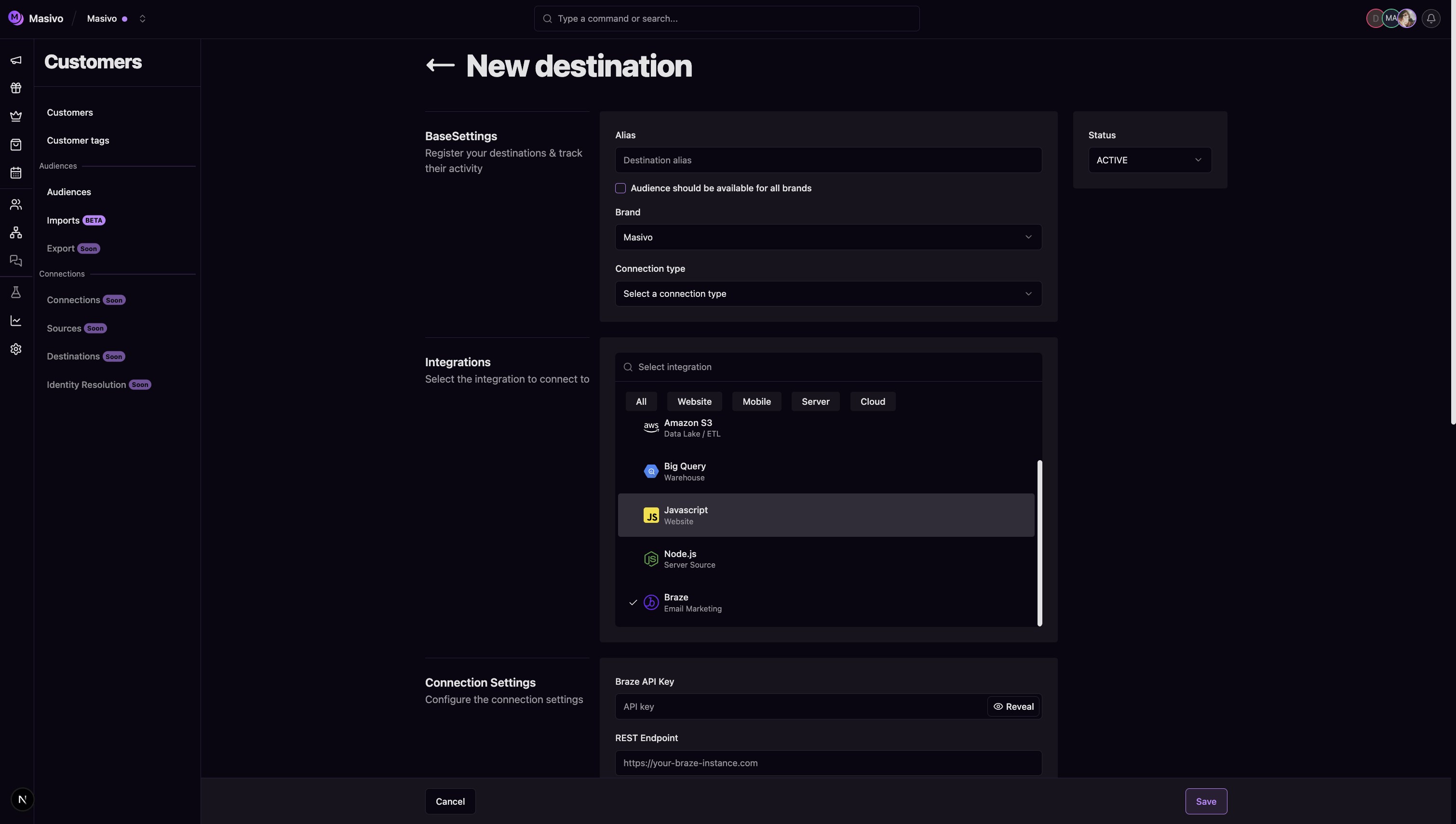
1. Go to **Settings → Integrations** in your Masivo dashboard
2. Browse available integrations by category
3. Select the platform you want to connect
### Step 2: Configure Connection
1. **API Key**: Enter your platform's API key
2. **Endpoint**: Configure the correct REST endpoint
3. **Permissions**: Ensure proper permissions for the features you want to use
4. **Features**: Enable the specific sync options you need
### Step 3: Test and Activate
1. **Test Connection**: Verify the integration works correctly
2. **Configure Sync Options**: Choose what data to sync
3. **Activate**: Enable the integration to start syncing
### Integration Categories
Masivo supports various types of integrations:
**Email Marketing**
* Customer engagement platforms
* Newsletter and campaign tools
* Marketing automation systems
**Website & Mobile**
* Analytics platforms
* User behavior tracking
* App performance monitoring
**Server & Cloud Sources**
* Data warehouses
* Cloud storage systems
* ETL platforms
**Event Streams**
* Real-time data processing
* Event-driven architectures
* Stream analytics
## Setting Up Integrations
### Step 1: Choose Your Integration
1. Go to **Settings → Integrations** in your Masivo dashboard
2. Browse available integrations by category
3. Select the platform you want to connect
### Step 2: Configure Connection
1. **API Key**: Enter your platform's API key
2. **Endpoint**: Configure the correct REST endpoint
3. **Permissions**: Ensure proper permissions for the features you want to use
4. **Features**: Enable the specific sync options you need
### Step 3: Test and Activate
1. **Test Connection**: Verify the integration works correctly
2. **Configure Sync Options**: Choose what data to sync
3. **Activate**: Enable the integration to start syncing
 ## Common Use Cases
### Marketing Automation
**Scenario**: Sync customer data with your email marketing platform
* **Customer Updates**: New signups automatically appear in your email lists
* **Behavioral Triggers**: Customer actions trigger email campaigns
* **Audience Sync**: Segmented audiences stay updated across platforms
### Analytics & Reporting
**Scenario**: Send customer events to your analytics platform
* **Purchase Tracking**: Order data flows to your analytics dashboard
* **Behavioral Analysis**: Customer actions are tracked across all touchpoints
* **Custom Events**: Business-specific events are captured and analyzed
### Customer Support
**Scenario**: Keep your support platform updated with customer information
* **Customer Profiles**: Support agents see complete customer history
* **Purchase Context**: Support tickets include relevant order information
* **Customer Status**: Tier changes and preferences sync automatically
## Related architecture
* [Registration flow](/resources/data-architecture#registration-flow) — How customer profiles are created and synced to destinations
* [Activity & events](/resources/data-architecture#activity-events) — How behavioral events and purchases reach external tools
* [Connected destinations](/resources/data-architecture#connected-destinations) — How audience and event data sync to ad platforms, CRM, and warehouse
* [Privacy & consent](/resources/data-architecture#privacy-consent) — How consent and deletion affect outbound sync
## Next Steps
Now that you understand how integrations work, you're ready to:
* [Set up Identity Resolution](/guides/CDP/unify/overview) - Connect integrations to unified customer profiles
* [Learn about Events](/guides/CDP/events) - Understand what data gets synced
* [Explore Customers & Contacts](/guides/CDP/customers) - See how customer data flows through integrations
***
**Ready to connect your tools?** Start syncing your customer data across all your favorite platforms for a unified view of your customers.
## Common Use Cases
### Marketing Automation
**Scenario**: Sync customer data with your email marketing platform
* **Customer Updates**: New signups automatically appear in your email lists
* **Behavioral Triggers**: Customer actions trigger email campaigns
* **Audience Sync**: Segmented audiences stay updated across platforms
### Analytics & Reporting
**Scenario**: Send customer events to your analytics platform
* **Purchase Tracking**: Order data flows to your analytics dashboard
* **Behavioral Analysis**: Customer actions are tracked across all touchpoints
* **Custom Events**: Business-specific events are captured and analyzed
### Customer Support
**Scenario**: Keep your support platform updated with customer information
* **Customer Profiles**: Support agents see complete customer history
* **Purchase Context**: Support tickets include relevant order information
* **Customer Status**: Tier changes and preferences sync automatically
## Related architecture
* [Registration flow](/resources/data-architecture#registration-flow) — How customer profiles are created and synced to destinations
* [Activity & events](/resources/data-architecture#activity-events) — How behavioral events and purchases reach external tools
* [Connected destinations](/resources/data-architecture#connected-destinations) — How audience and event data sync to ad platforms, CRM, and warehouse
* [Privacy & consent](/resources/data-architecture#privacy-consent) — How consent and deletion affect outbound sync
## Next Steps
Now that you understand how integrations work, you're ready to:
* [Set up Identity Resolution](/guides/CDP/unify/overview) - Connect integrations to unified customer profiles
* [Learn about Events](/guides/CDP/events) - Understand what data gets synced
* [Explore Customers & Contacts](/guides/CDP/customers) - See how customer data flows through integrations
***
**Ready to connect your tools?** Start syncing your customer data across all your favorite platforms for a unified view of your customers.