> ## Documentation Index
> Fetch the complete documentation index at: https://docs.masivo.ai/llms.txt
> Use this file to discover all available pages before exploring further.
# Analytics Exports
> Export analytics tables to CSV and learn the available export types in Masivo.
## Overview
Masivo analytics tables can be downloaded as CSV files. Small datasets (up to
100 rows) download immediately. When the report exceeds that limit, Masivo
creates an asynchronous export that runs in the background and becomes
available in **Analytics → Exports**.
Download links remain active for 30 days.
## How exports are created
### From the UI
1. Apply filters, period, and grouping in the target table (Emails, Push,
Links, Campaigns, Rewards, and more).
2. Click on the download button that appears above the table
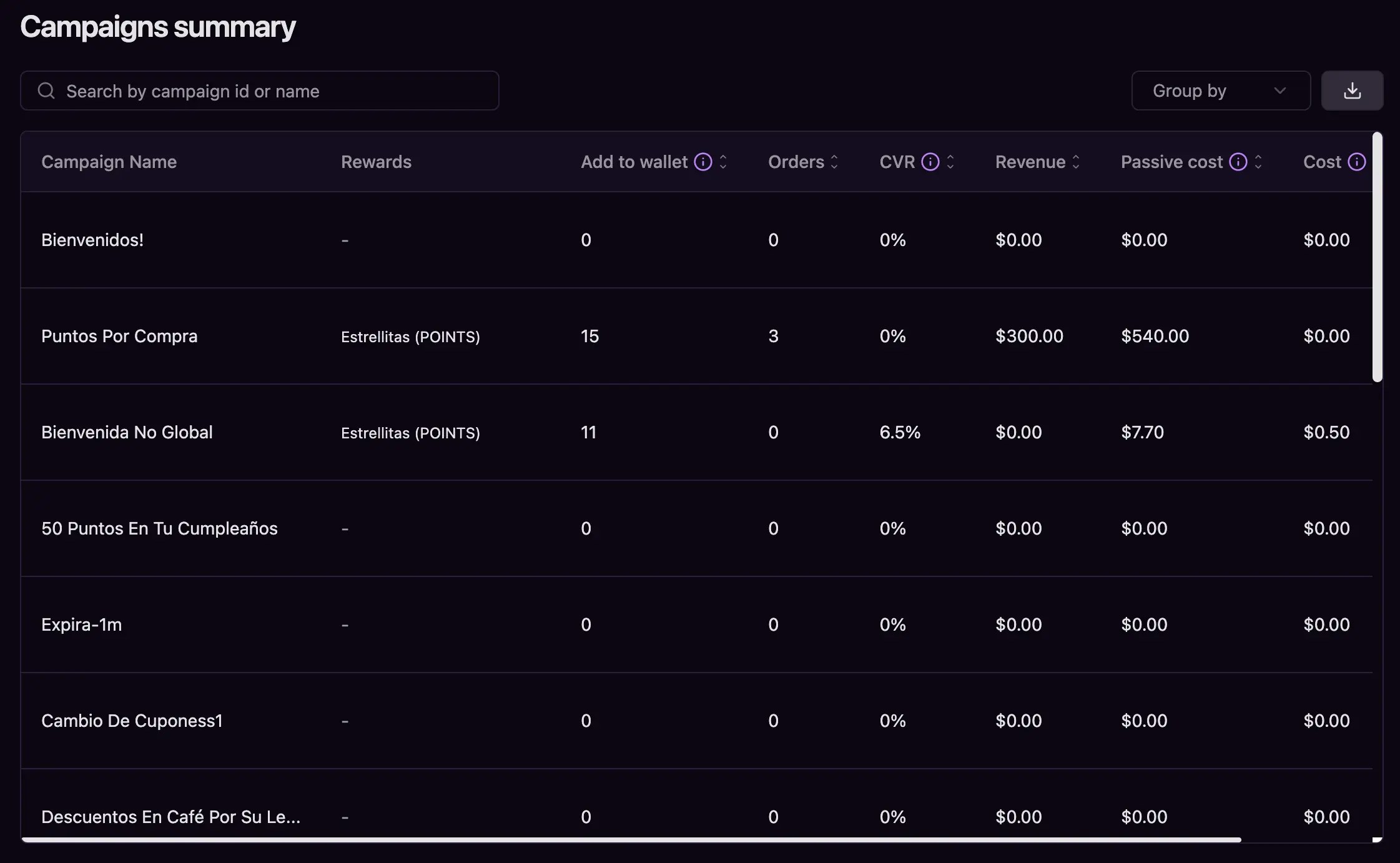 3. If the result has 100 rows or fewer, the download starts immediately.
4. If the result exceeds the limit, Masivo creates a `PENDING` entry in
`analytics_exports` and redirects you to **Analytics → Exports**.
## Export lifecycle
1. **Request (`PENDING`)**\
The system stores the account, export type, filters, and expected row count.
2. **Processing (`PROCESSING`)**\
A dedicated cron job processes up to two exports per run, fetching 500-row
batches from the Tinybird pipe. Progress is cached in Supabase Cache KV so it
can resume after interruptions.
3. **Delivery (`COMPLETED`)**\
Once all rows are processed, the CSV is uploaded to
`analytics-exports/exports/{account_id}/{label}` in Supabase Storage, a
public URL is generated, and `expires_at` is set 30 days ahead.
4. **Failures (`ERROR`)**\
Any error (Tinybird timeout, network issues, unsupported filters) updates the
record to `ERROR`, stores the message in `error`, and clears cached progress.
5. **Automatic cleanup**\
The cron also removes expired files and the related database records.
## Progress and statuses
The **Analytics → Exports** page shows:
* **File Name**: final filename (prefixed with `masivo-`, plus type, account,
and date range).
* **Type**: readable label (`EMAIL`, `PUSH`, etc.).
* **Rows**: expected row count (`total_rows`).
* **Status**: `PENDING`, `PROCESSING`, `COMPLETED`, or `ERROR`.
* **Created / Completed / Failed**: key timestamps.
* **Expires At**: deadline to download the file.
* **Error**: detailed message when something goes wrong.
3. If the result has 100 rows or fewer, the download starts immediately.
4. If the result exceeds the limit, Masivo creates a `PENDING` entry in
`analytics_exports` and redirects you to **Analytics → Exports**.
## Export lifecycle
1. **Request (`PENDING`)**\
The system stores the account, export type, filters, and expected row count.
2. **Processing (`PROCESSING`)**\
A dedicated cron job processes up to two exports per run, fetching 500-row
batches from the Tinybird pipe. Progress is cached in Supabase Cache KV so it
can resume after interruptions.
3. **Delivery (`COMPLETED`)**\
Once all rows are processed, the CSV is uploaded to
`analytics-exports/exports/{account_id}/{label}` in Supabase Storage, a
public URL is generated, and `expires_at` is set 30 days ahead.
4. **Failures (`ERROR`)**\
Any error (Tinybird timeout, network issues, unsupported filters) updates the
record to `ERROR`, stores the message in `error`, and clears cached progress.
5. **Automatic cleanup**\
The cron also removes expired files and the related database records.
## Progress and statuses
The **Analytics → Exports** page shows:
* **File Name**: final filename (prefixed with `masivo-`, plus type, account,
and date range).
* **Type**: readable label (`EMAIL`, `PUSH`, etc.).
* **Rows**: expected row count (`total_rows`).
* **Status**: `PENDING`, `PROCESSING`, `COMPLETED`, or `ERROR`.
* **Created / Completed / Failed**: key timestamps.
* **Expires At**: deadline to download the file.
* **Error**: detailed message when something goes wrong.
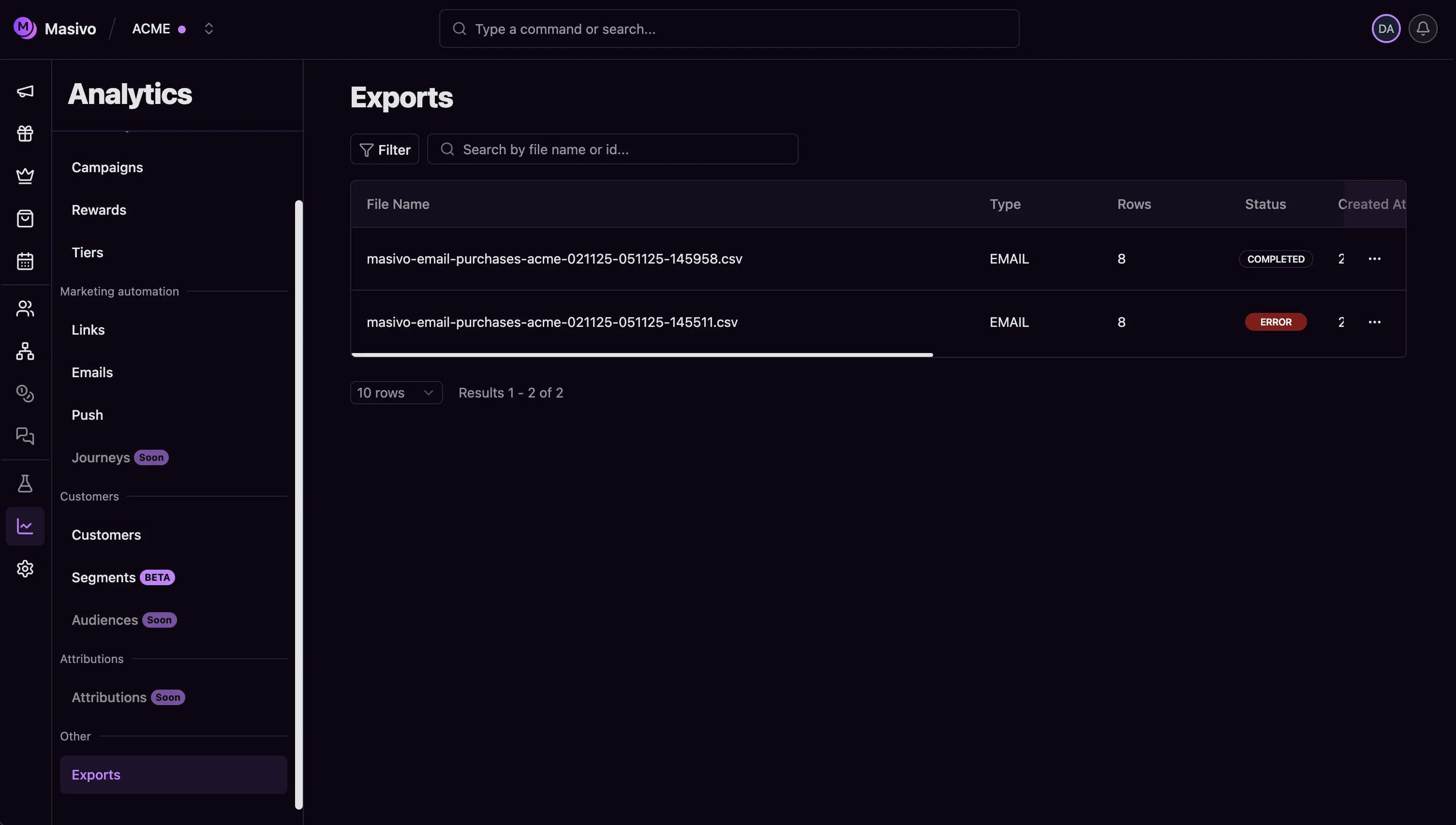 Exports in `COMPLETED` state provide a download link until they expire.
## Direct downloads vs exports
* **Direct download**\
Up to 100 rows (`DIRECT_DOWNLOAD_LIMIT`). The browser builds the CSV from the
data already fetched in the table.
* **Asynchronous export**\
When the row count exceeds the limit, the download button creates an export in
the background. Masivo sends an in-app notification once the CSV is ready.
Exports in `COMPLETED` state provide a download link until they expire.
## Direct downloads vs exports
* **Direct download**\
Up to 100 rows (`DIRECT_DOWNLOAD_LIMIT`). The browser builds the CSV from the
data already fetched in the table.
* **Asynchronous export**\
When the row count exceeds the limit, the download button creates an export in
the background. Masivo sends an in-app notification once the CSV is ready.