> ## Documentation Index
> Fetch the complete documentation index at: https://docs.masivo.ai/llms.txt
> Use this file to discover all available pages before exploring further.
# WhatsApp templates
> Learn how to create and manage WhatsApp templates in Masivo
## What you'll learn
By the end of this guide, you'll know how to create template messages, get
them approved, and use them in campaigns and journeys.
Before creating templates, configure your WhatsApp channel in
[WhatsApp settings](/guides/settings/whatsapp).
## Step 1: Access WhatsApp templates
Navigate to **Marketing Automation > WhatsApp templates**.
Click **New WhatsApp template** to create your first template.
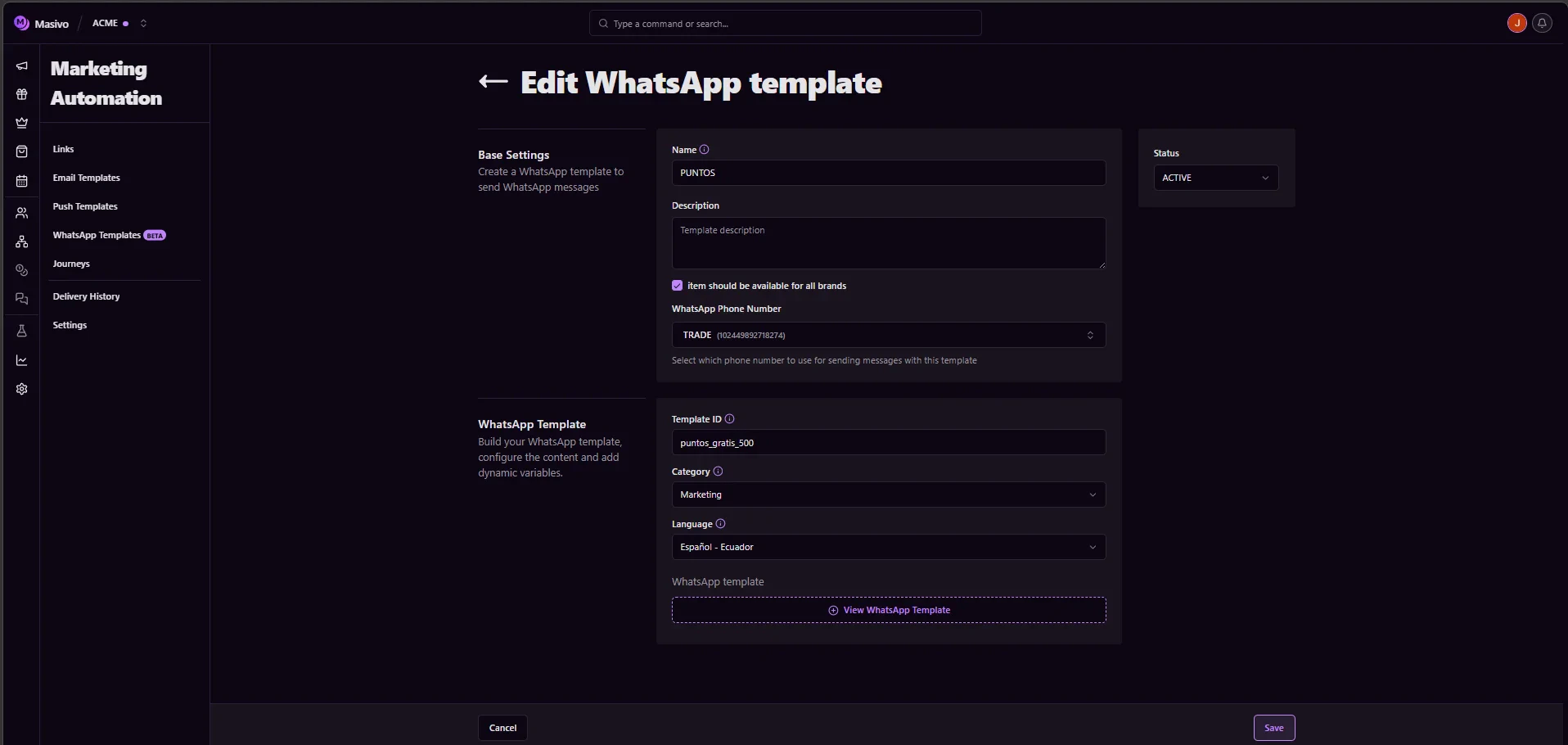
## Step 2: Define your template foundation
Start by organizing your template so it is easy to find and reuse later.
* **Name**: Use clear names like `Cart Recovery - 1 hour`.
* **Description**: Add context about when this template is sent.
* **Brand**: Select the correct brand if you manage multiple brands.
* **Template ID**: Use a stable identifier (lowercase, numbers, underscores).
* **Category**: Choose the right type (`MARKETING`, `UTILITY`,
`AUTHENTICATION`).
* **WhatsApp phone number**: Pick the sending number for this template.
 ## Step 3: Build the message content
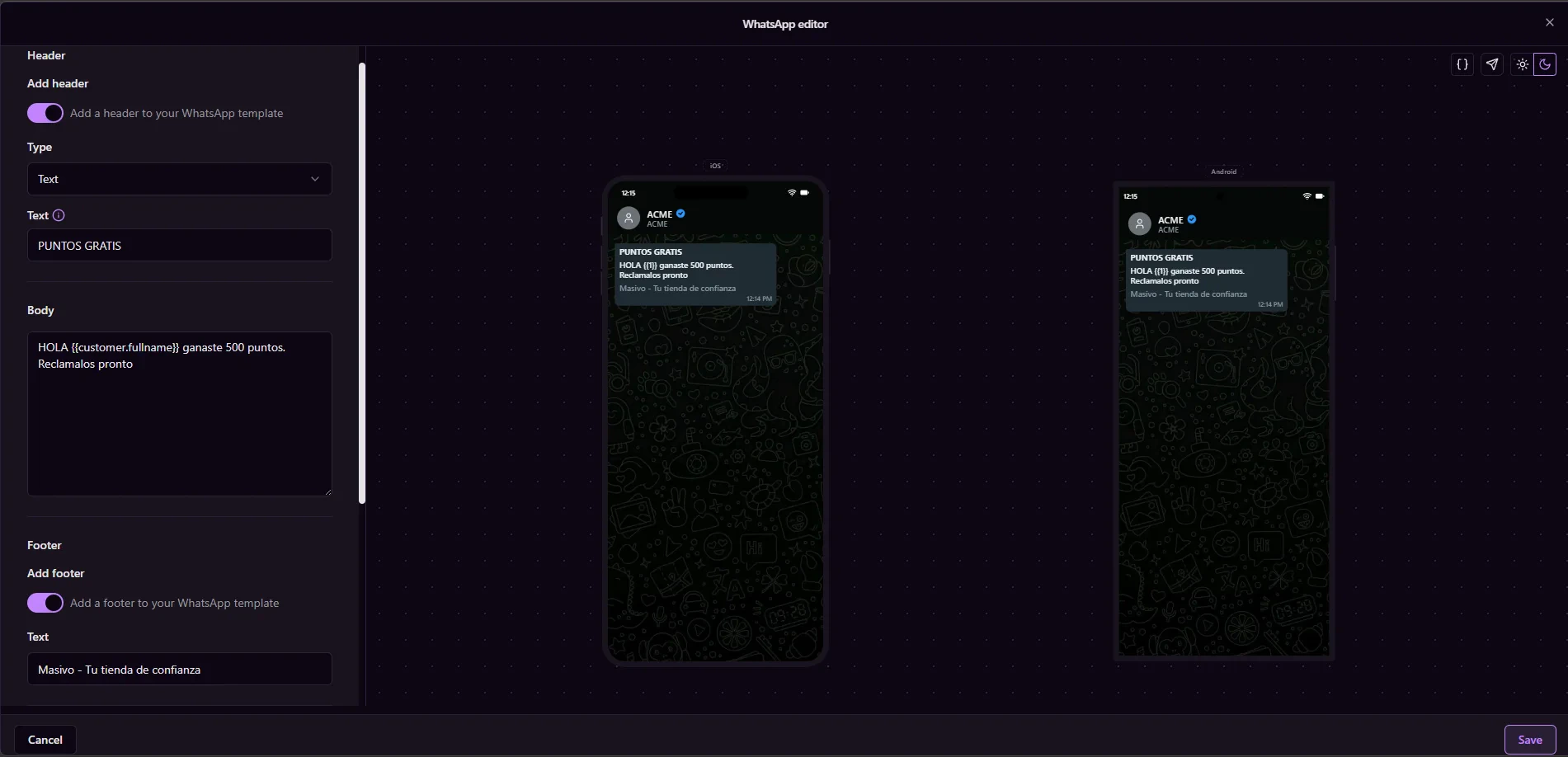
Create the content based on your selected category:
* **Header**: Optional text or media (depending on category rules).
* **Body**: Main message content with dynamic variables where needed.
* **Footer**: Optional supporting text.
* **Buttons**: Quick replies, URLs, phone actions, or copy code (when
supported).
Use variables to personalize messages, but keep content compliant with WhatsApp
template guidelines.
## Step 3: Build the message content
Create the content based on your selected category:
* **Header**: Optional text or media (depending on category rules).
* **Body**: Main message content with dynamic variables where needed.
* **Footer**: Optional supporting text.
* **Buttons**: Quick replies, URLs, phone actions, or copy code (when
supported).
Use variables to personalize messages, but keep content compliant with WhatsApp
template guidelines.
 ## Step 4: Submit and monitor approval status
When you save a template, Masivo submits it to Meta and tracks approval status.
Common statuses:
* **PENDING**: Submitted and waiting for review.
* **APPROVED**: Ready to use in sends and journeys.
* **REJECTED**: Needs edits before re-submission.
Templates must be approved before you can send tests or schedule WhatsApp
campaigns.
## Step 5: Test and schedule WhatsApp campaigns
After approval, use template actions to validate and launch sends.
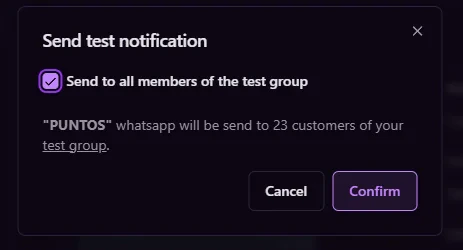
* **Send test**: Confirm formatting, variables, and button behavior.
* **Schedule**: Select audience and delivery time for campaign execution.
## Step 4: Submit and monitor approval status
When you save a template, Masivo submits it to Meta and tracks approval status.
Common statuses:
* **PENDING**: Submitted and waiting for review.
* **APPROVED**: Ready to use in sends and journeys.
* **REJECTED**: Needs edits before re-submission.
Templates must be approved before you can send tests or schedule WhatsApp
campaigns.
## Step 5: Test and schedule WhatsApp campaigns
After approval, use template actions to validate and launch sends.
* **Send test**: Confirm formatting, variables, and button behavior.
* **Schedule**: Select audience and delivery time for campaign execution.
 ## Step 6: Use templates in journeys and analytics
You can also use approved templates inside journeys with the
**Send WhatsApp message** action.
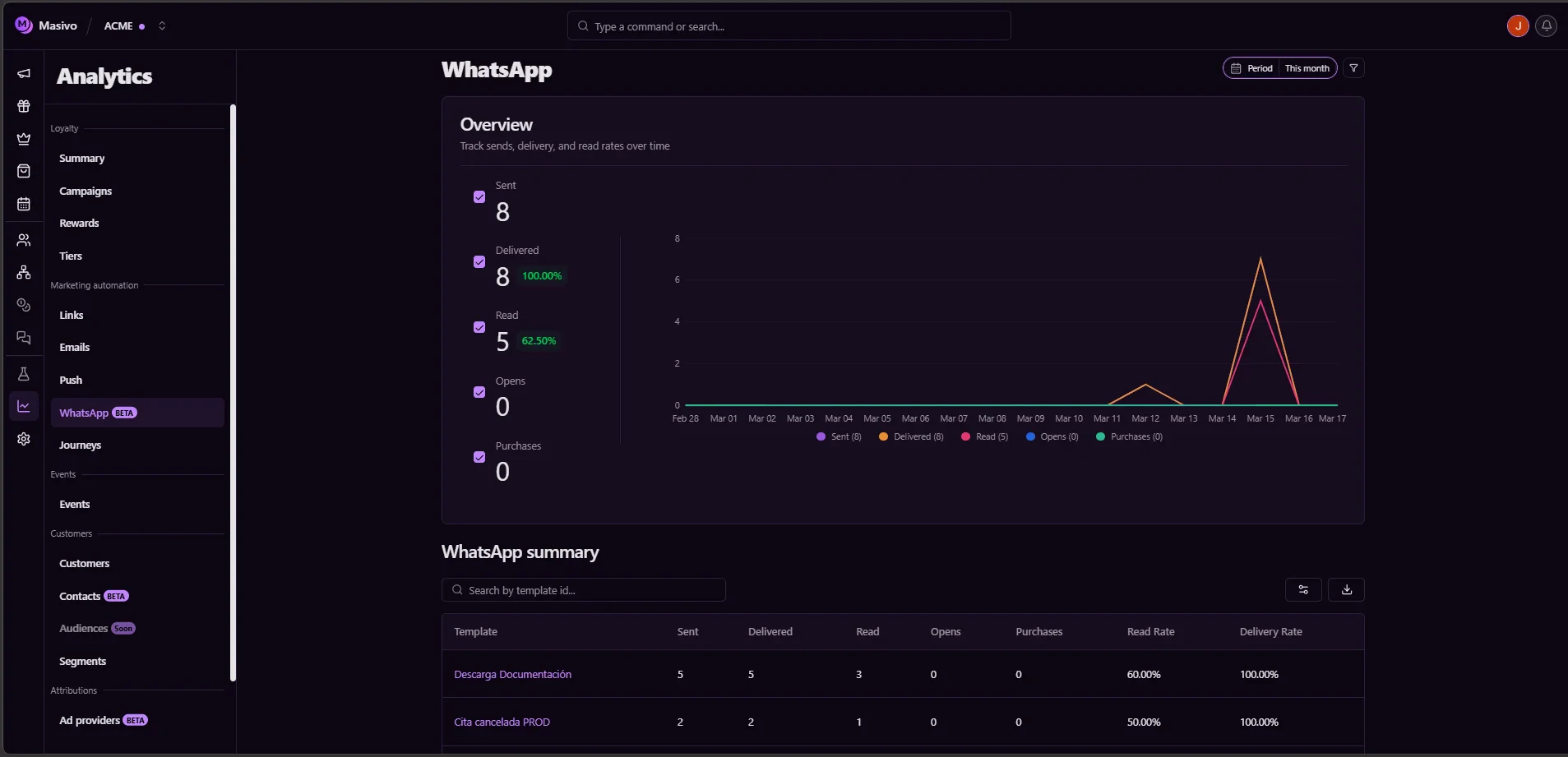
Then monitor performance in **Analytics > WhatsApp** to track delivery, read
rate, link opens, and attributed outcomes.
## Step 6: Use templates in journeys and analytics
You can also use approved templates inside journeys with the
**Send WhatsApp message** action.
Then monitor performance in **Analytics > WhatsApp** to track delivery, read
rate, link opens, and attributed outcomes.
 ## What you've accomplished
You've created a reusable approved template and enabled campaign and journey
execution through Masivo's marketing automation flow.
## Next steps
* Configure channel setup in [WhatsApp settings](/guides/settings/whatsapp)
* Learn how to automate sends in [Journeys](/guides/create-journeys)
* Personalize message content with
[template variables](/guides/using-template-variables)
* Export performance data with [Analytics Exports](/guides/analytics-exports)
## Related architecture
* [Marketing & destinations](/resources/data-architecture#marketing-destinations) — How WhatsApp templates are delivered in journeys and audience sends
## What you've accomplished
You've created a reusable approved template and enabled campaign and journey
execution through Masivo's marketing automation flow.
## Next steps
* Configure channel setup in [WhatsApp settings](/guides/settings/whatsapp)
* Learn how to automate sends in [Journeys](/guides/create-journeys)
* Personalize message content with
[template variables](/guides/using-template-variables)
* Export performance data with [Analytics Exports](/guides/analytics-exports)
## Related architecture
* [Marketing & destinations](/resources/data-architecture#marketing-destinations) — How WhatsApp templates are delivered in journeys and audience sends