> ## Documentation Index
> Fetch the complete documentation index at: https://docs.masivo.ai/llms.txt
> Use this file to discover all available pages before exploring further.
# Push settings
> Configure Firebase credentials and token policies for push notifications
## What you'll learn
By the end of this guide, you'll know how to configure Push settings required
for sending notifications from Masivo.
## Step 1: Open push settings
Navigate to **Marketing Automation > Settings > Push**.
## Step 2: Confirm links prerequisite
Push settings require at least one custom domain configured in links settings.
If no custom domain exists, push configuration fields remain unavailable and
the UI prompts you to configure links first.
Configure this prerequisite in [Links settings](/guides/settings/links).
## Step 3: Upload Firebase Admin SDK
In **Firebase SDK**, upload your Firebase Admin SDK JSON file.
Requirements:
* File must be `.json`.
* The file is stored in marketing automation settings storage.
* Once configured, you can run **test credentials**.
Use **test credentials** to validate your Firebase integration before sending
campaigns.
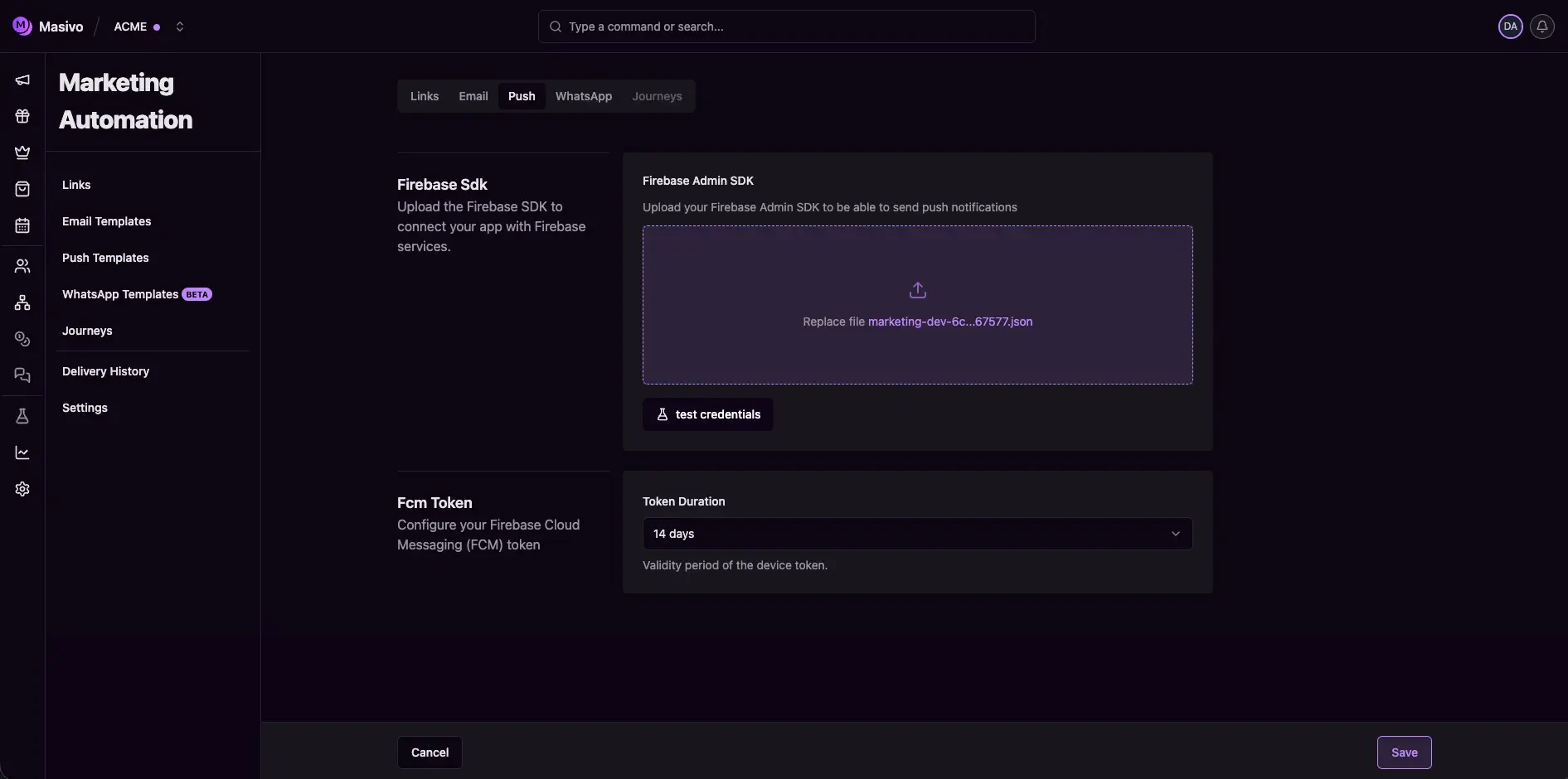 ## Step 4: Configure FCM token duration
In **Fcm Token**, set **Token Duration**.
Available values:
* `7` days
* `14` days
* `30` days
* `60` days (recommended)
* `270` days
This controls the validity period for device tokens in push delivery flows.
## Step 5: Save and validate
Click **Save** in form actions after making changes.
Then test push template sending from **Marketing Automation > Push templates**
to confirm credentials and token policies are working.
Custom sounds require a native app build. Follow the
[mobile integration guide](/api-reference/guides/integrate-push-notification#custom-notification-sounds)
before selecting a custom filename in a template.
Editing is restricted for non-admin roles in this settings form.
## What you've accomplished
You've configured the push channel foundation, including Firebase
authentication and token lifecycle policy.
## Next steps
* Create campaigns with [Push guide](/guides/create-push)
* Validate SDK behavior on physical devices before production sends
## Step 4: Configure FCM token duration
In **Fcm Token**, set **Token Duration**.
Available values:
* `7` days
* `14` days
* `30` days
* `60` days (recommended)
* `270` days
This controls the validity period for device tokens in push delivery flows.
## Step 5: Save and validate
Click **Save** in form actions after making changes.
Then test push template sending from **Marketing Automation > Push templates**
to confirm credentials and token policies are working.
Custom sounds require a native app build. Follow the
[mobile integration guide](/api-reference/guides/integrate-push-notification#custom-notification-sounds)
before selecting a custom filename in a template.
Editing is restricted for non-admin roles in this settings form.
## What you've accomplished
You've configured the push channel foundation, including Firebase
authentication and token lifecycle policy.
## Next steps
* Create campaigns with [Push guide](/guides/create-push)
* Validate SDK behavior on physical devices before production sends