

Marketing email must provide a clear opt-out. Transactional account email is
excluded from marketing unsubscribe behavior.
Overview
Every marketing email must include a way for recipients to opt out. This is a key part of deliverability and maintaining a healthy audience. This guide explains why dynamic unsubscribe links are essential, and how they relate to practices like audience hygiene and domain warm-up.Why unsubscribe links matter
Failing to include an unsubscribe link can result in:- Emails marked as spam or phishing
- Poor deliverability rates
- Blacklisted domains or IP addresses
- Provider enforcement or account suspension
How unsubscribe links help during domain warm-up
When warming up your domain or IP, your goal is to establish a strong sender reputation by gradually increasing your volume and avoiding spam complaints. While unsubscribe links are not explicitly mentioned in warm-up schedules, they play a key role in:- Keeping user-reported spam low
- Giving users a clear and respectful way to opt out
- Preventing harmful engagement patterns that damage reputation
What is a dynamic unsubscribe link?
Masivo supports template variables like{{unsubscribe_link}}, which are replaced at send time with a personalized unsubscribe URL for each recipient.
This ensures:
- Users can be safely and uniquely identified
- Unsubscribe requests are properly handled and tracked
- You stay compliant with anti-spam regulations like CAN-SPAM and GDPR
List-Unsubscribecontains a signed recipient URL.List-Unsubscribe-Post: List-Unsubscribe=One-Clickallows Gmail and other supporting inboxes to unsubscribe with a POST request.
How to configure the unsubscribe link
To properly insert the unsubscribe link in your emails, follow these steps using the Masivo Email Builder.1. Add the unsubscribe link to the footer
Use the footer editor to insert a new line with an unsubscribe link in both desktop and mobile versions.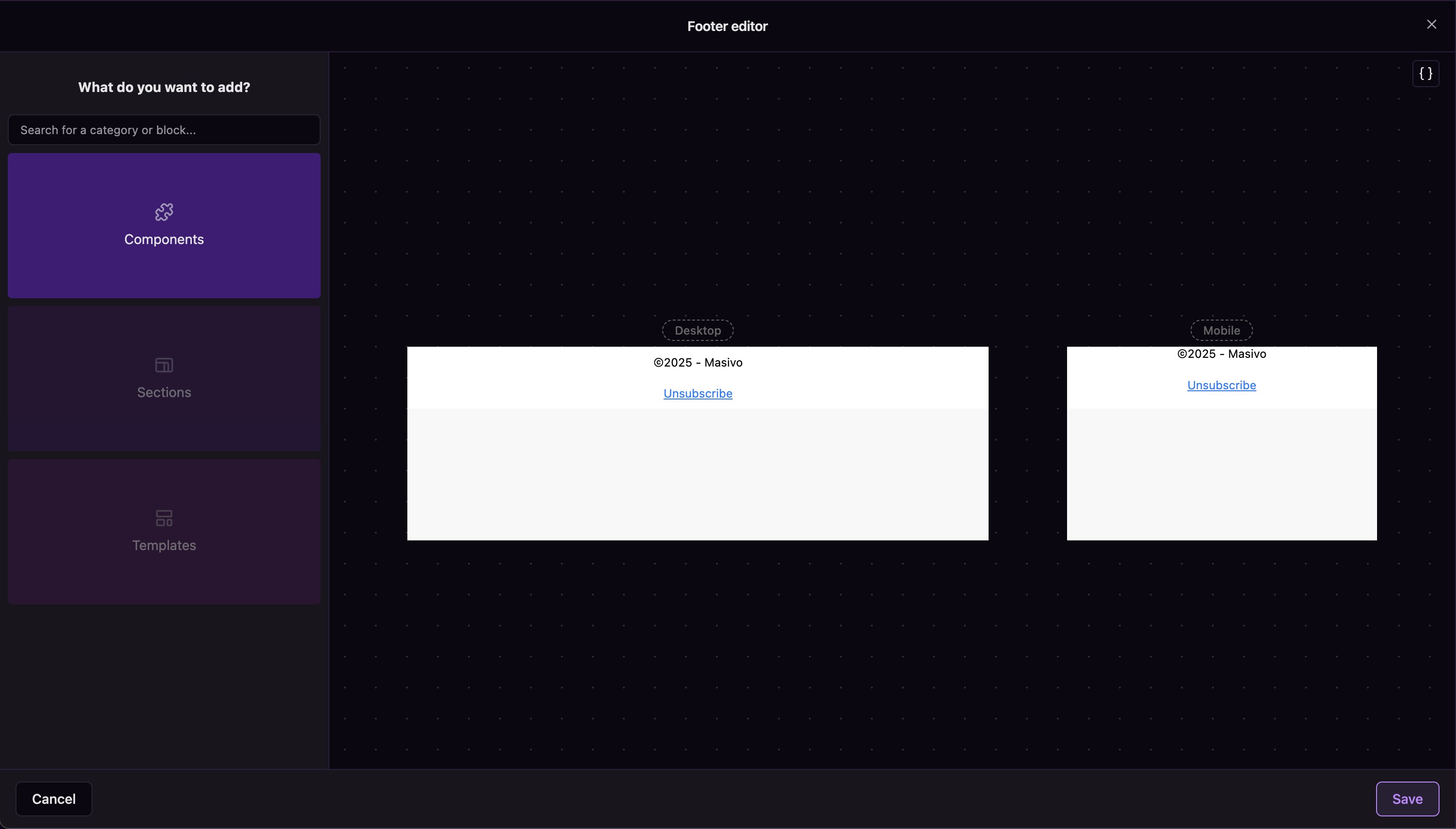
Footer editor in the email builder
2. Use the dynamic variable in the snippet
Edit the Unsubscribe component to include the dynamic variable. Make sure the snippet uses the dynamic placeholder:{{global.unsubscribe}}
This ensures that each recipient gets a personalized unsubscribe URL.
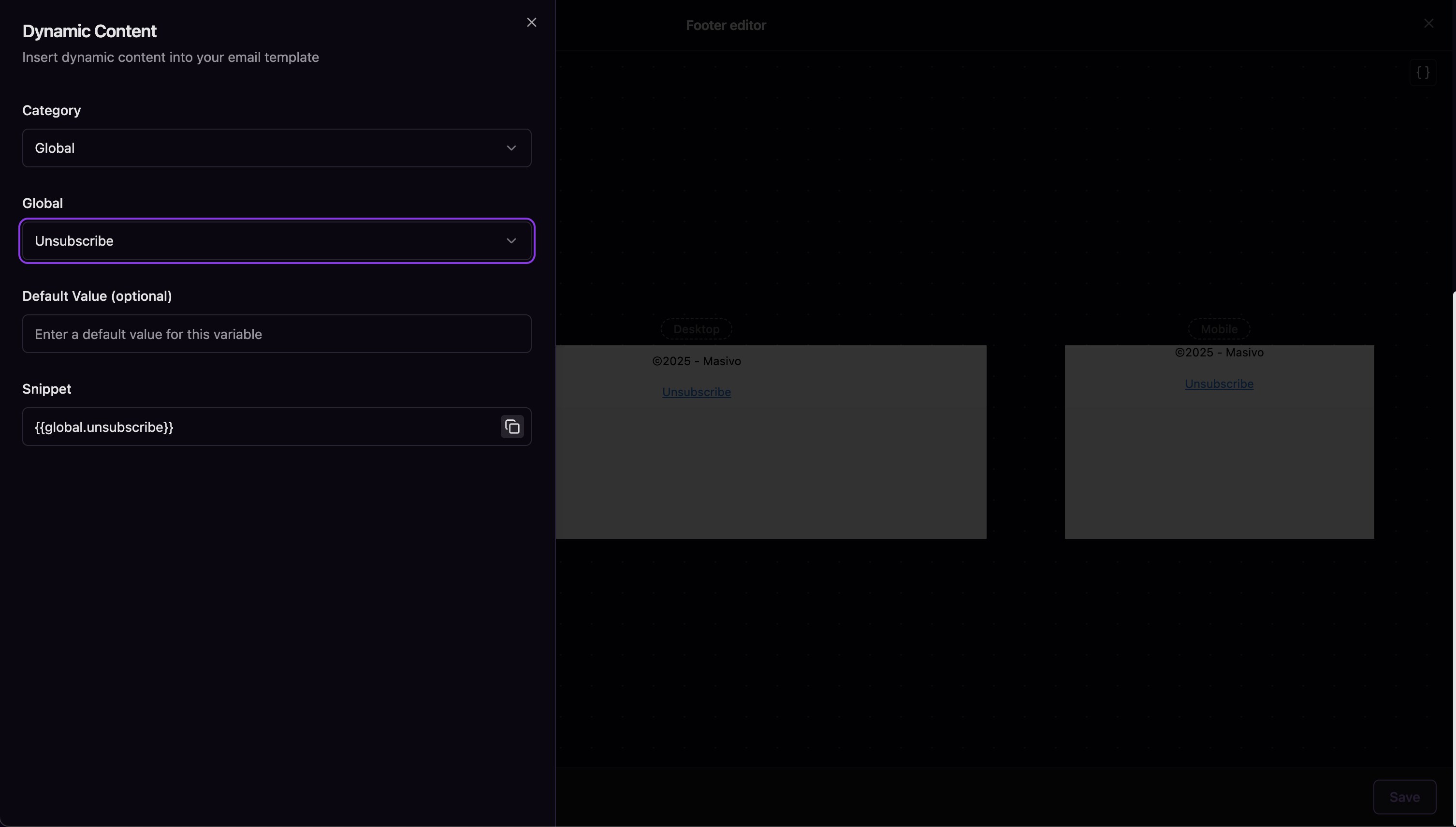
Inserting the unsubscribe dynamic variable