

What you’ll learn
By the end of this guide, you’ll know how to create template messages, get them approved, and use them in campaigns and journeys.Before creating templates, configure your WhatsApp channel in
WhatsApp settings.
Step 1: Access WhatsApp templates
Navigate to Marketing Automation > WhatsApp templates. Click New WhatsApp template to create your first template.Step 2: Define your template foundation
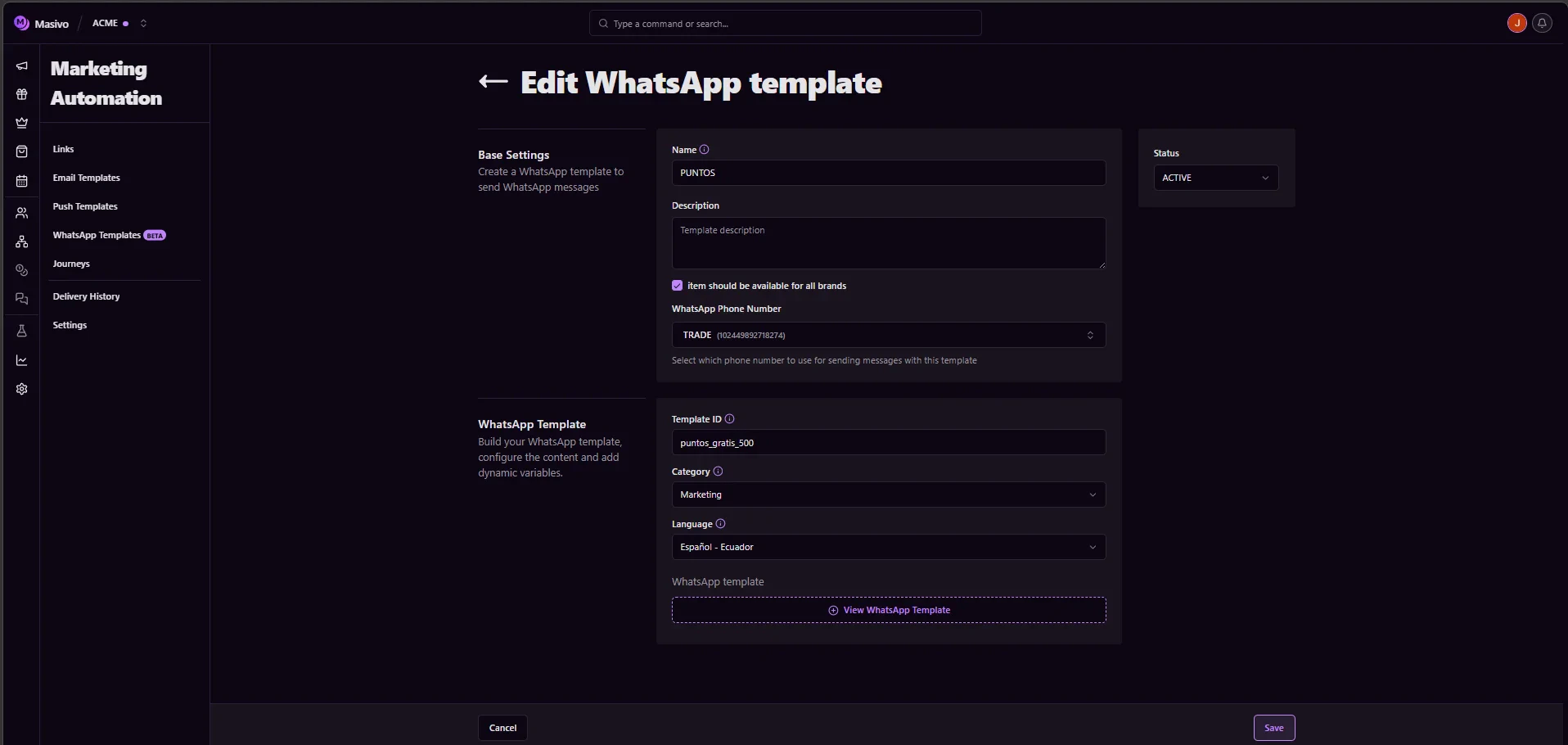
Start by organizing your template so it is easy to find and reuse later.- Name: Use clear names like
Cart Recovery - 1 hour. - Description: Add context about when this template is sent.
- Brand: Select the correct brand if you manage multiple brands.
- Template ID: Use a stable identifier (lowercase, numbers, underscores).
- Category: Choose the right type (
MARKETING,UTILITY,AUTHENTICATION). - WhatsApp phone number: Pick the sending number for this template.
Test push notifications
Step 3: Build the message content
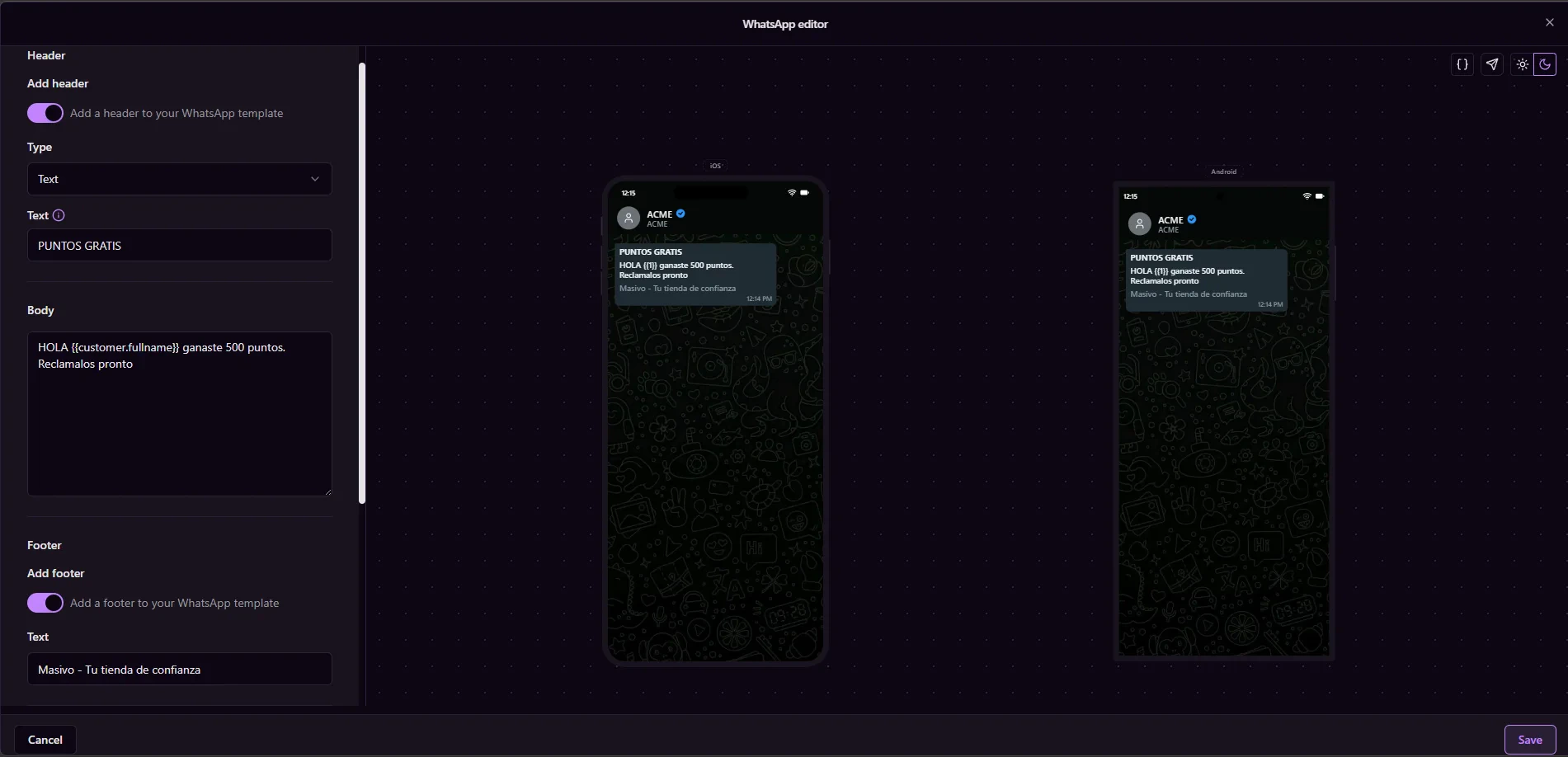
Create the content based on your selected category:- Header: Optional text or media (depending on category rules).
- Body: Main message content with dynamic variables where needed.
- Footer: Optional supporting text.
- Buttons: Quick replies, URLs, phone actions, or copy code (when supported).
Test push notifications
Step 4: Submit and monitor approval status
When you save a template, Masivo submits it to Meta and tracks approval status. Common statuses:- PENDING: Submitted and waiting for review.
- APPROVED: Ready to use in sends and journeys.
- REJECTED: Needs edits before re-submission.
Templates must be approved before you can send tests or schedule WhatsApp
campaigns.
Step 5: Test and schedule WhatsApp campaigns
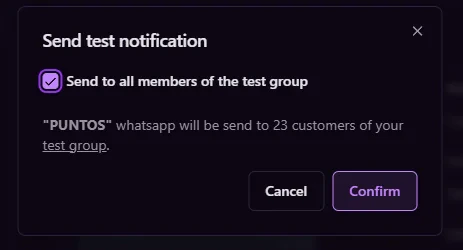
After approval, use template actions to validate and launch sends.- Send test: Confirm formatting, variables, and button behavior.
- Schedule: Select audience and delivery time for campaign execution.
Test push notifications
A/B testing with variants
Use the A/B testing section to add up to four versions. Each WhatsApp variant has its own Meta template ID. On save, Masivo submits each variant to Meta for approval. Scheduled sends can split the audience by percentage. Journey WhatsApp actions pick one approved variant. See Template variants for limits, distribution, tests, and analytics.Step 6: Use templates in journeys and analytics
You can also use approved templates inside journeys with the Send WhatsApp message action. Then monitor performance in Analytics > WhatsApp to track delivery, read rate, link opens, and attributed outcomes.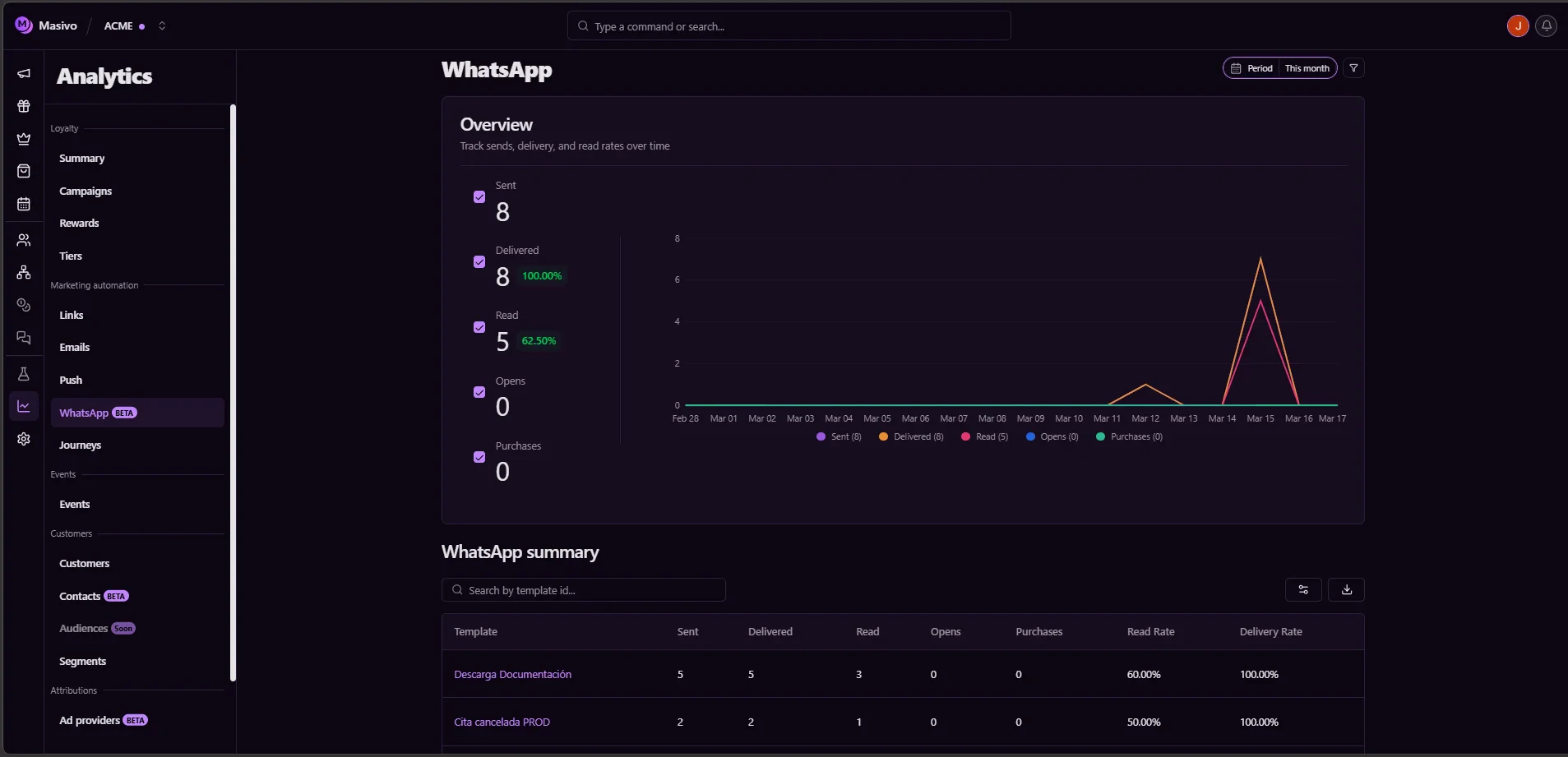
Test push notifications
What you’ve accomplished
You’ve created a reusable approved template and enabled campaign and journey
execution through Masivo’s marketing automation flow.
Next steps
- Configure channel setup in WhatsApp settings
- Learn how to automate sends in Journeys
- A/B test copy with template variants
- Personalize message content with template variables
- Export performance data with Analytics Exports
Related architecture
- Marketing & destinations — How WhatsApp templates are delivered in journeys and audience sends