

Template variants let you test another title, text, or design on the same
template without changing shared settings such as alias, description, or
brand.
What you’ll learn
By the end of this guide, you’ll know how to add up to four variants on a template, how scheduled sends split traffic, and how journeys pick a variant.Where variants are available
You can add variants on: Each channel uses the same A/B testing section in the template editor.Add and manage variants
Open a template in Marketing Automation. The A/B testing section lists the current versions and shows a1/4 variants badge (up to 4/4).
A new template starts with a single version. Empty-state copy explains when to
add another, for example a different subject (email), title (push), layout
(in-app), or card design (News Feed).
Create a variant
- New Variant Template creates an empty version.
- The chevron next to that button clones an existing variant. Search by label in Search variant….
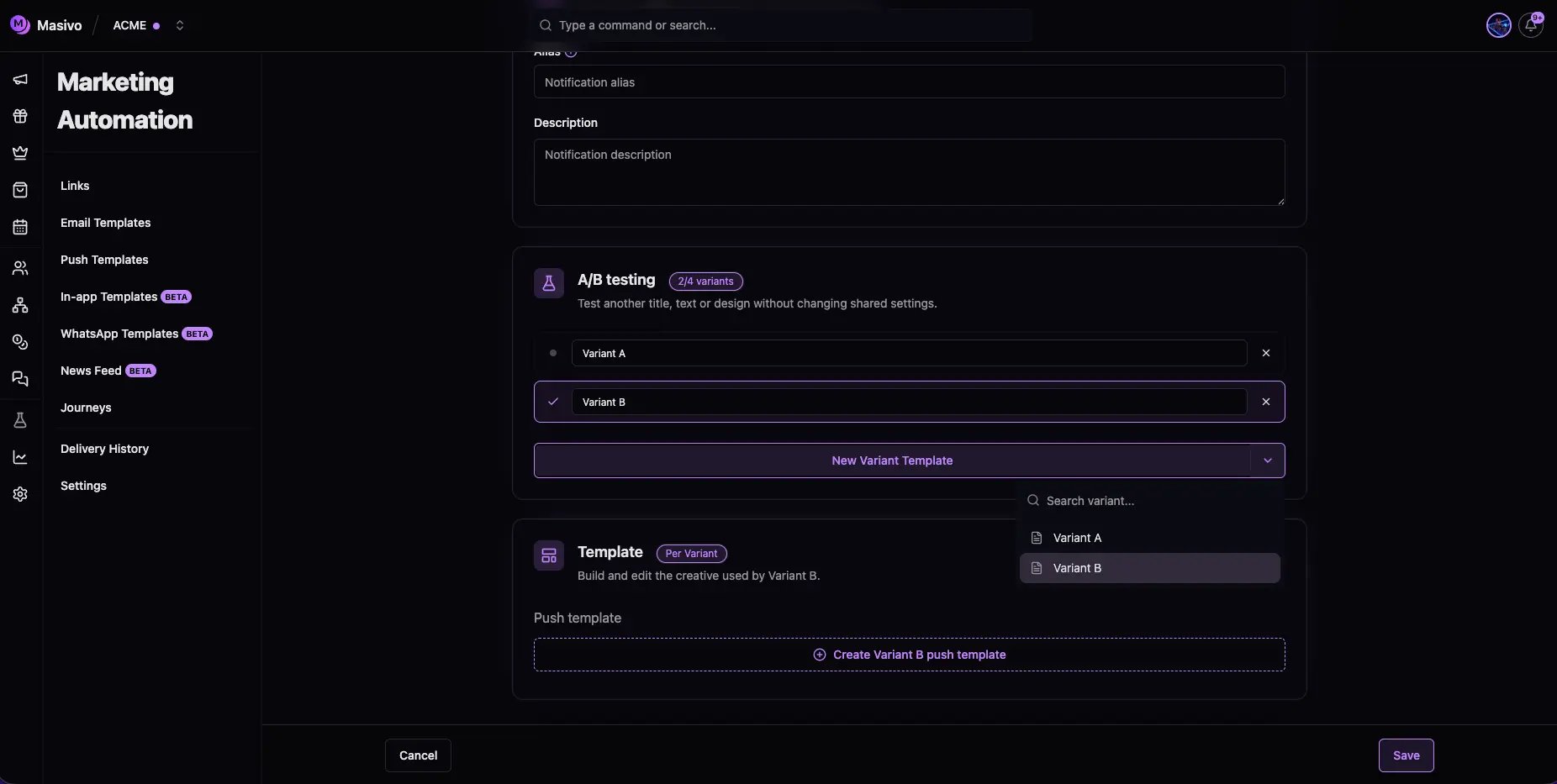
Creating a new variant
Variant A, Variant B, Variant C, or Variant D.
Select a row to edit that version. Content fields are marked Per Variant.
You cannot remove the last remaining variant.
What each variant can change
WhatsApp approval
WhatsApp variants each have their own Meta template ID. On save, Masivo submits each variant to Meta for approval in one step. Each variant has its own status (PENDING, APPROVED, REJECTED). A variant must be approved
before you can send it in a test, schedule, or journey.
Test sends
Use Send test on the template.- Specific customers: choose Send variant to force one version.
- Test group / audience: set Variant distribution. Weights are whole
numbers and must sum to
100%. Use Distribute evenly to split the remainder automatically (for example two variants become50/50).
100%, Masivo shows
The sum of the variants must be 100%. and the send does not run.
Scheduled audience sends
When you Schedule a template that has more than one variant, the same Variant distribution control appears. Weights must sum to100% before
you can create the scheduled notification.
Masivo assigns each recipient a variant using those weights (probabilistic). A
weight of 0 means that variant is not selected for that send.
A template with a single version does not show distribution controls.
Journeys
Journey actions do not use weight distribution. If the selected template has more than one variant, the action form shows Select a variant and you must pick one before you can save. That action always sends the chosen version.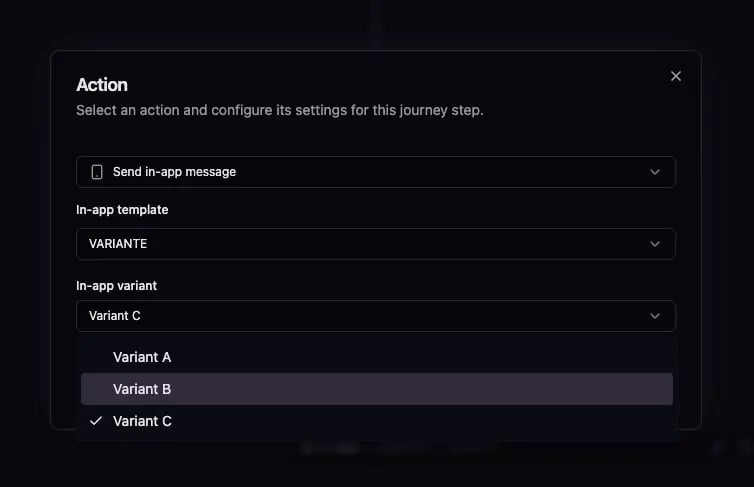
Add variant to journey
Email variant, Push variant, In-app variant,
WhatsApp variant, News feed variant).
Analytics
When a template has more than one variant, the template page in Analytics includes a variants table (alias, sends, and channel engagement metrics). You can download a variants report from that table. Open the template under Analytics > Emails, Push, WhatsApp, In-app, or News Feed.Next steps
- Personalize copy with template variables
- Use a variant in an automated step: Journeys
- Export tables to CSV: Analytics Exports