

What you’ll learn
By the end of this guide, you’ll know how to configure WhatsApp settings in Masivo so templates can be approved, tested, and delivered correctly.Step 1: Open WhatsApp settings
Navigate to Marketing Automation > Settings > WhatsApp.Step 2: Configure credentials
In WhatsApp Credentials, complete:- Access Token
- Phone Numbers (one or more entries with
LabelandPhone Number ID) - Business Account ID
- App ID
- Verify Token
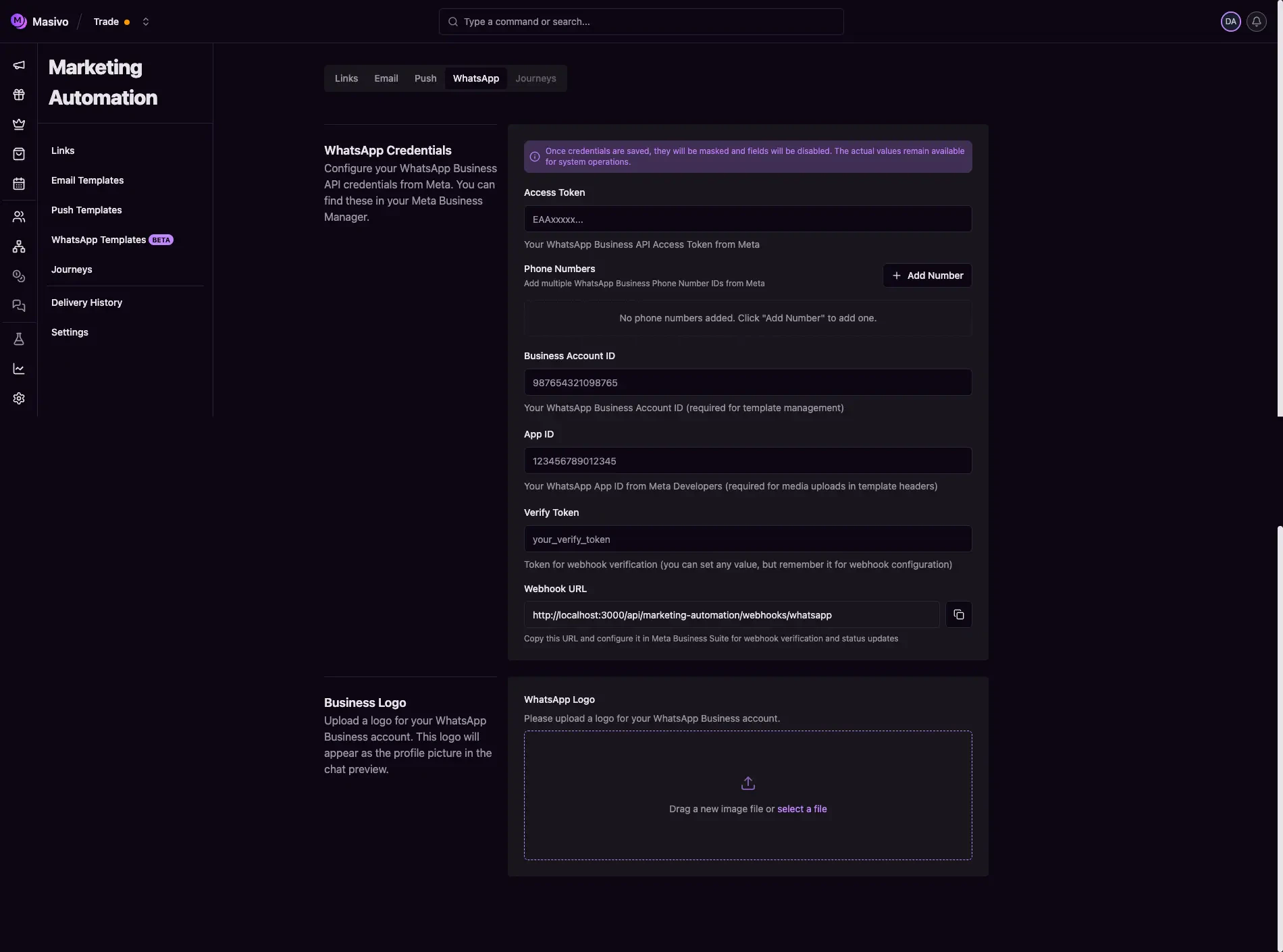
Whatsapp settings
- Phone Number IDs, Business Account ID, and App ID use numeric identifiers.
- You can add/remove phone number entries from the form.
- The webhook URL is displayed read-only with a copy button.
How to get the Access Token
Use a system user token from Meta Business Manager (long-lived; suitable for production). Official steps are in Meta’s WhatsApp access tokens guide. Summary:- Open Business settings
(
business.facebook.com), then go to Users and System users. - Click Add and create a system user (choose Admin or Employee). Admin users get full access to WABAs in your business portfolio by default; Employee users need each WhatsApp Business Account (WABA) assigned with Full control (or partial access if you prefer a tighter scope).
- Open the system user, use Assign assets, and add your Meta Developer app with Manage app so the user ends with Full control of that app (reload the page if the asset does not show immediately).
- Assign your WhatsApp Business Account to the same system user with Full control when required (especially for Employee system users).
- In the system user panel, click Generate token. Select your app, set
token expiration if prompted, and include at least
whatsapp_business_messaging,whatsapp_business_management, andbusiness_management. Generate the token and copy it once—store it securely; you may not see it again.
How to get the Business Account ID
Business Account ID is your WhatsApp Business Account ID (WABA ID)—the numeric id of the WABA tied to your numbers and templates. In Meta Business Manager:- Open Business settings
(
business.facebook.com). - In the sidebar, open Accounts and select WhatsApp accounts (sometimes labeled WhatsApp Business accounts or grouped under WhatsApp-related account settings, depending on locale and UI).
- Click the WABA you use with your app. Meta shows the WhatsApp Business Account ID in the account details panel—copy that value into Masivo.
How to get the App ID
App ID is the numeric identifier of your Meta app (the one that includes the WhatsApp product and that you install for the system user in Business Manager). Use the same app across Masivo, token generation, and asset assignment so IDs and permissions stay aligned. Per Meta’s App Dashboard documentation:- Open My Apps and select your app.
- After the app loads, the toolbar at the top of the dashboard shows the App ID (it is created with the app and cannot be changed). You can also find it under App settings (or Settings) → Basic, in the app’s summary fields.
How to get Phone Number IDs
Each row under Phone Numbers needs the Phone Number ID (Graph API id for that line), not the E.164 phone string. Meta documents this in Manage phone numbers (Get all phone numbers). Call the Graph API with your WhatsApp Business Account ID (same value as Business Account ID in this form) and a token that has WhatsApp management access:https://graph.facebook.com/v24.0/109929475293471/phone_numbers?access_token=...
Use the Graph API version your app is pinned to if it differs from v24.0.
The JSON response includes a data array. For each number, copy id into
Masivo as Phone Number ID and use display_phone_number or
verified_name to pick the right line when labeling. Optional fields such
as quality_rating help you tell numbers apart.
Configure the webhook in Meta
Meta delivers WhatsApp events to the callback URL you register and checks your Verify Token during setup. Use the same callback URL and verify token as in Masivo (Verify Token in this form and the read-only webhook URL). See Meta’s Set up webhooks guide for field subscriptions and behavior. In Meta App Dashboard, open your app (the one with WhatsApp). If the app was created with the Connect with customers through WhatsApp use case, go to:- Use cases
- Connect with customers through WhatsApp
- Customize
- Configuration
Step 3: Configure business logo
In Business Logo, upload the WhatsApp profile image used in chat previews. This file is stored in marketing automation settings storage for your account.Step 4: Save and understand masking behavior
Click Save in form actions. After saving:- Sensitive credentials are masked in the UI.
- Masked fields become disabled/read-only.
- Save actions are blocked while masked values are present.
Configure and verify all required fields before saving to avoid incomplete
credential state.
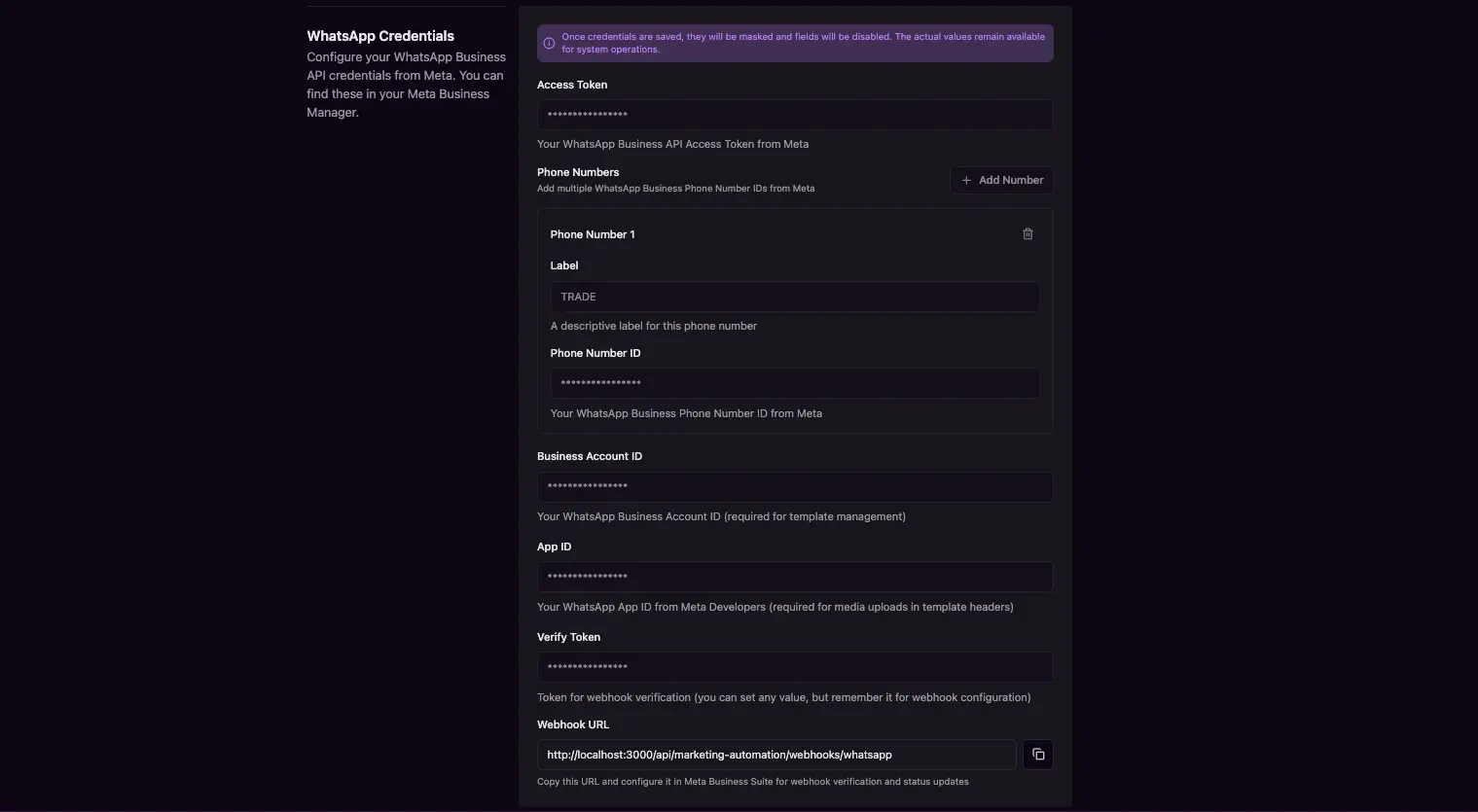
Whatsapp credentials
What you’ve accomplished
You’ve configured WhatsApp channel credentials, webhook connectivity, and
branding needed for template operations in Masivo.
Next steps
- Create and manage templates in WhatsApp templates guide
- Use approved templates in Journeys