

What you’ll learn
By the end of this guide, you’ll know how to configure global link settings in Masivo, including custom domains, DNS records, redirects, app store identifiers, and QR logo branding.Step 1: Open links settings
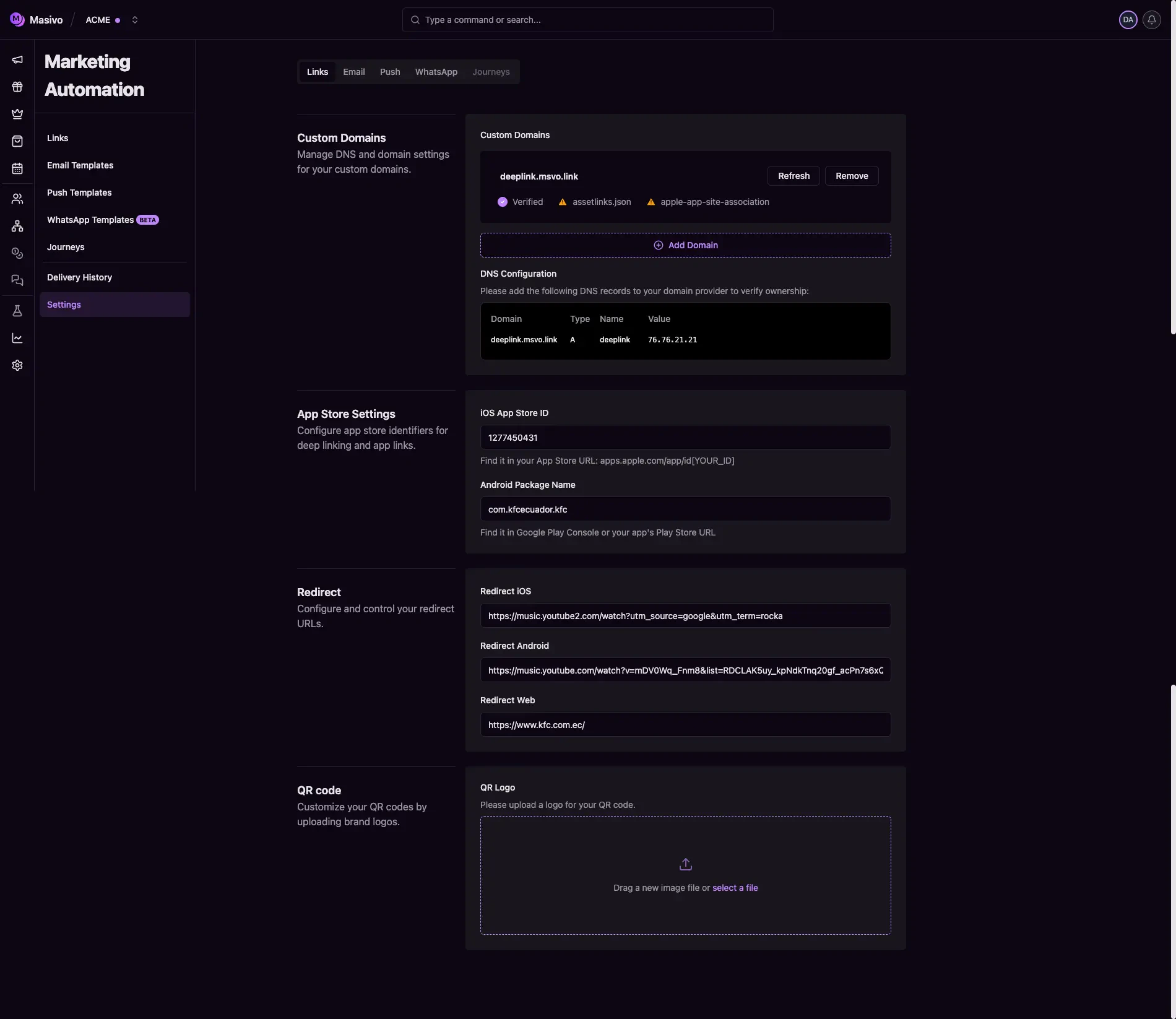
Navigate to Marketing Automation > Settings > Links. This tab controls account-level link behavior used by your short links and QR flows.Step 2: Configure custom domains
In Custom Domains, add and manage up to 3 domains. Important behavior:- Domain format must be valid (for example:
links.example.com). - Avoid protocols and paths (
https://,/path). - Use Refresh to re-check verification status.
- Remove domains with the Remove action.
- For verified domains, you can upload
assetlinks.jsonandapple-app-site-association.
Well-known file uploads are allowed for domains already saved in your account
configuration.
Link settings
Step 3: Add DNS records
Use the DNS Configuration table to copy the required records to your DNS provider. Masivo shows the records needed to verify ownership and enable app-link behavior.Step 4: Configure app store settings
In App Store Settings, define:- iOS App Store ID (numeric ID from Apple App Store URL)
- Android Package Name (package identifier from Play Store/console)
Step 5: Configure default redirects
In Redirect, set fallback URLs for:- Redirect iOS
- Redirect Android
- Redirect Web
Step 6: Configure QR logo
In QR code, upload your brand logo for generated QR assets. Accepted formats follow image upload constraints for settings files.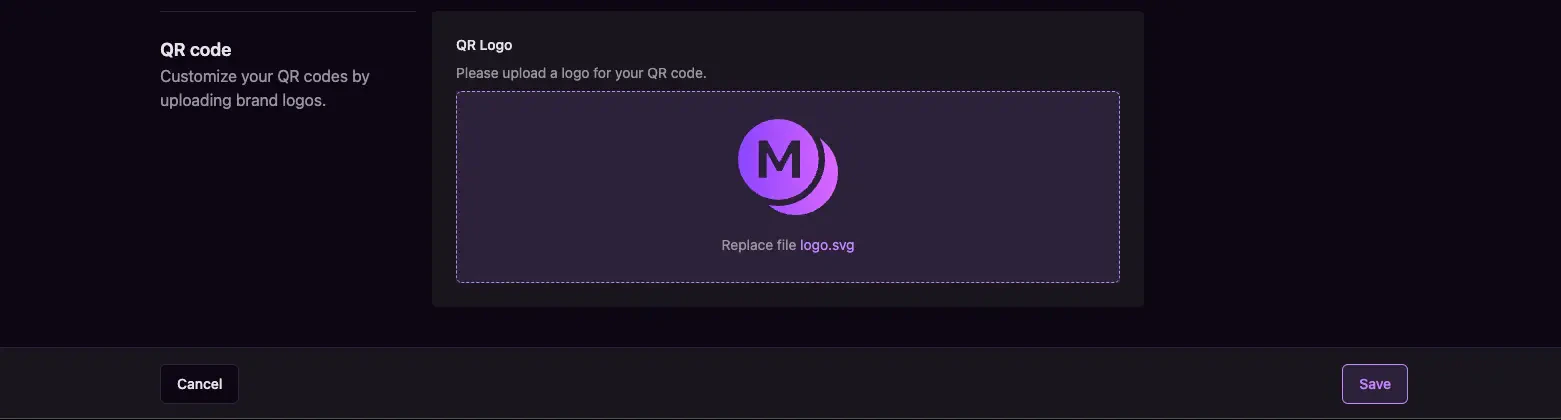
Configure QR logo
Step 7: Save and validate
Click Save in form actions. Then create or edit a link in Marketing Automation > Links and confirm:- The configured domain appears in domain selector.
- Redirect defaults are applied correctly.
- QR branding reflects your uploaded logo.
What you’ve accomplished
You’ve configured global link settings required for branded domains, reliable
redirects, and QR identity in marketing automation flows.
Next steps
- Create campaign links with Links guide
- Configure push prerequisites with Push settings